
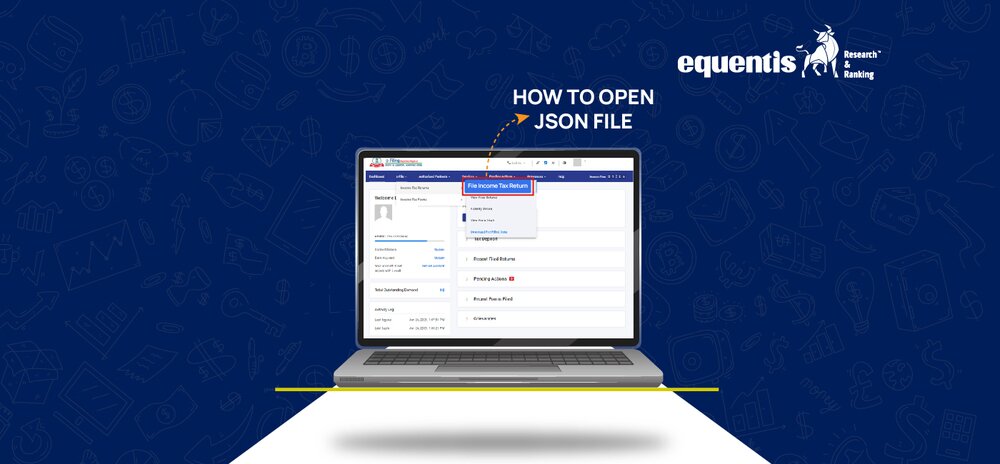

Filing your Income Tax Return (ITR) can seem technical, especially when you’re dealing with terms like JSON files. But don’t worry—it’s not as complicated as it sounds.
If you’re e-filing your ITR through the offline method, you’ll need to handle something called a JSON file.
Many taxpayers face confusion about how to open JSON file of income tax, edit it, or fix errors if the file fails to load. This guide will explain it all in a simple way.
Whether you are a salaried professional, or a business owner dealing with indirect tax, or someone exploring the new vs old tax regime, knowing how to use these files correctly is vital for smooth filing.
Let’s begin by understanding what JSON files are and why they matter.
What is a JSON File in Income Tax Filing?
JSON stands for JavaScript Object Notation. It’s a data file format used by the IT Department to store the information you input in your Income Tax Return (ITR). When you fill in the details using the Income Tax offline utility and save them, the utility generates a JSON file.
This file is then uploaded to the income tax portal to complete your return filing process.
Why is a JSON File Required for ITR Filing?
When you choose to file your ITR offline (by downloading the utility), the data you enter isn’t directly submitted online. Instead, it’s stored in a JSON format. This ensures consistency and accuracy in the transfer and processing of your financial data.
It also helps if you are taking the help of share market advisory services or tax consultants, as they can simply edit and generate this file on your behalf for filing.
How to Download the JSON Utility from Income Tax Portal
Step-by-Step Guide to Download JSON Utility
To work with a JSON file, you first need the Income Tax Return (ITR) Utility—a software provided by the Income Tax Department of India.
Here’s how you can download it:
- Visit the official income tax e-filing website: https://www.incometax.gov.in
- Navigate to the ‘Downloads’ section in the main menu.
- Select the Assessment Year (e.g., AY 2024-25).
- Choose your relevant ITR form – like ITR-1, ITR-2, etc.
- Click on the ‘Download’ link for the corresponding JSON utility.
- A ZIP file will be downloaded.
- Extract the ZIP file and open the utility (either Excel-based or Java-based).
Once installed, you can begin entering your data and open JSON file income tax.
Supported Versions for Different ITR Forms
Each ITR form has a separate version of the utility:
- ITR-1 (Sahaj): For salaried individuals and pensioners.
- ITR-2: For individuals and HUFs not having business income.
- ITR-3: For individuals and HUFs with business/professional income.
- ITR-4 (Sugam): For presumptive income under section 44AD, 44ADA, or 44AE.
Ensure that you’re using the correct version. If not, your file might throw errors or fail to load.
How to Open a JSON File of Income Tax
To know the answer of how to open a JSON file of Income Tax, use the official Income Tax Utility. Follow these steps:
- Open the utility on your computer.
- Click on ‘Import Pre-filled JSON’ or ‘Import Draft JSON’.
- Browse and select your saved JSON file.
- The utility will automatically load all the previously entered data.
- You can now review, edit, and validate the data.
This method ensures the data loads correctly and is aligned with the latest formats and validations used by the Income Tax Department.
Opening JSON File Using Other Tools (View Only)
Sometimes, people try to open JSON files using text editors like Notepad or online JSON viewers.
While this is possible, it’s only for viewing purposes. JSON is a text-based format, so if you open it outside the utility:
- You’ll see raw code and data structures.
- Editing here can corrupt the file and make it unusable.
- It’s not recommended unless you’re a software developer or data expert.
For all practical purposes, especially when filing your return, it’s best to use the official Income Tax Utility.
How to Edit a JSON File Correctly
Loading JSON File into the Income Tax Utility
To edit a JSON file, you need to load it back into the utility:
- Launch the ITR Utility.
- Click on ‘Open’ or ‘Import JSON’ option from the homepage.
- Select the relevant file and open it.
- Make sure it matches the version of your utility.
Once the file is open, you’ll be able to edit any section, personal details, salary income, capital gains, business income, etc.
Making Corrections and Saving the File
Here’s how to edit and save it:
- Correct any incorrect figures, spelling errors, or mismatched PAN numbers.
- Add or remove details based on your new documents (e.g., new Form 16, or revised windfall tax info).
- After editing, click on ‘Validate’ to check for errors.
- If everything is fine, click on ‘Save’ or ‘Generate JSON’.
- The utility will create a new JSON file, ready for upload.
This edited file can now be uploaded to the Income Tax Portal.
Common Issues While Opening JSON Files
File Format Errors
Sometimes, when you try to open income tax JSON file, an error message pops up like “Invalid file format”.
Causes:
- The file was manually edited outside the utility.
- File extension was changed (e.g., .txt instead of .json).
- Corrupted file due to improper download.
Solution: Delete the file and download or regenerate it using the official tool again.
Version Mismatch Problems
If the version of the utility doesn’t match the version used to create the file, you will get a “Version Mismatch” error.
Fix: Visit https://www.incometax.gov.in and download the latest version of the utility for your ITR form.
Make sure your Assessment Year and ITR form version match the file.
Solutions for Opening Errors
Here are quick fixes:
- Use only the official utility.
- Always keep a backup of the original JSON file.
- Don’t rename or modify the file extension.
- Check for software compatibility (Java version, if needed).
Precautions to Take While Handling JSON Files
Ensure Proper Download and Installation
Many people face issues because they:
- Use outdated versions
- Download utilities from third-party websites
- Skip extracting the ZIP file
Always:
- Download from the official income tax site.
- Extract and install correctly.
- Update regularly to get the latest forms and bug fixes.
Do Not Modify JSON Files Outside the Utility
It’s tempting to fix minor errors directly in Notepad. But this can break the file.
Avoid using:
- Notepad
- Online editors
- Third-party JSON software
Doing so could result in an invalid file and errors while uploading.
Conclusion
Understanding how to open JSON file of income tax and using it properly is essential for accurate tax filing. Whether you are opting for the new vs old tax regime, claiming deductions, or calculating indirect tax liabilities, the JSON file is your data carrier.
Always use the official utility, stay updated, and avoid manual edits. For professionals, especially those involved in share market advisory, this is a must-know process to ensure seamless ITR filing for clients.
FAQs
Can I open a JSON file without the Income Tax Utility?
Yes, but only to view the contents, not for editing or filing. You can use Notepad or online viewers, but it’s not advisable for making changes.
What if the JSON file does not open after downloading?
If the JSON file does not open after downloading, first check whether you have extracted the ZIP file correctly. Ensure that you’re using the latest version of the income tax utility, as outdated versions can lead to compatibility issues. Also, verify that the file is not corrupted during download. If the problem continues despite these checks, it’s best to delete the current file and download a fresh copy from the official income tax portal.
Can I edit the JSON file manually?
Technically, yes, but never do it. Manual edits can damage the file and lead to rejection during upload.
Which software is needed to open a JSON file?
Use the Income Tax Return Utility, available for download at the official portal. No other software is needed for safe handling.
Disclaimer Note: The securities quoted, if any, are for illustration only and are not recommendatory. This article is for education purposes only and shall not be considered as a recommendation or investment advice by Equentis – Research & Ranking. We will not be liable for any losses that may occur. Investments in the securities market are subject to market risks. Read all the related documents carefully before investing. Registration granted by SEBI, membership of BASL & certification from NISM in no way guarantee the performance of the intermediary or provide any assurance of returns to investors.

Yash Vora is a financial writer with the Informed InvestoRR team at Equentis. He has followed the stock markets right from his early college days. So, Yash has a keen eye for the big market movers. His clear and crisp writeups offer sharp insights on market moving stocks, fund flows, economic data and IPOs. When not looking at stocks, Yash loves a game of table tennis or chess.